Pattern Customizer - Stitch Palettes

See your finished embroidery before you start stitching, in just five easy steps.
Welcome to the Preview Edition of Pattern Customizer! Use three demo patterns to experiment with colors and fabric backgrounds. To get the most from the tool (recoloring your purchased patterns and exporting PDFs) you'll need a Palette Picks & Perks membership.
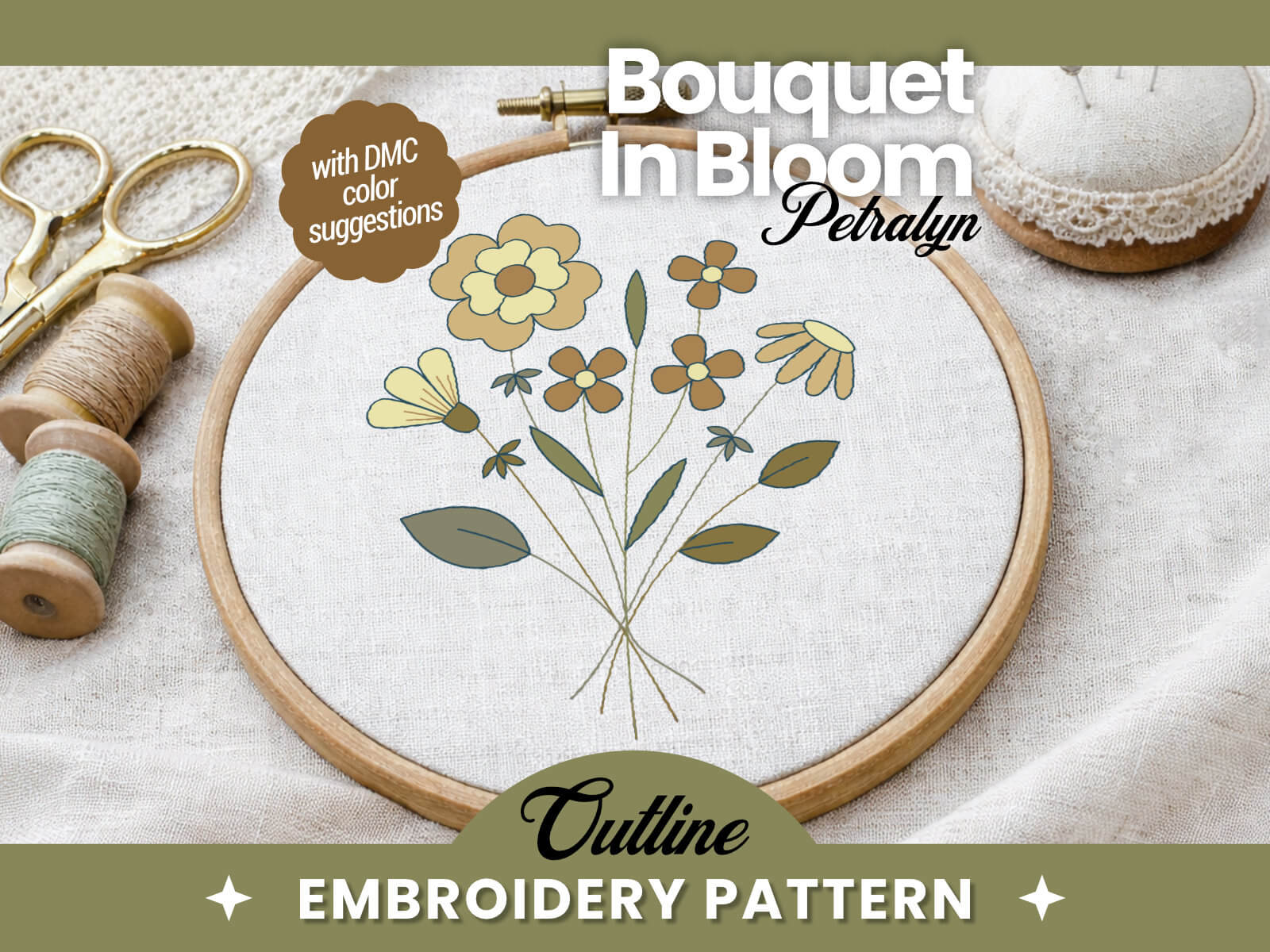
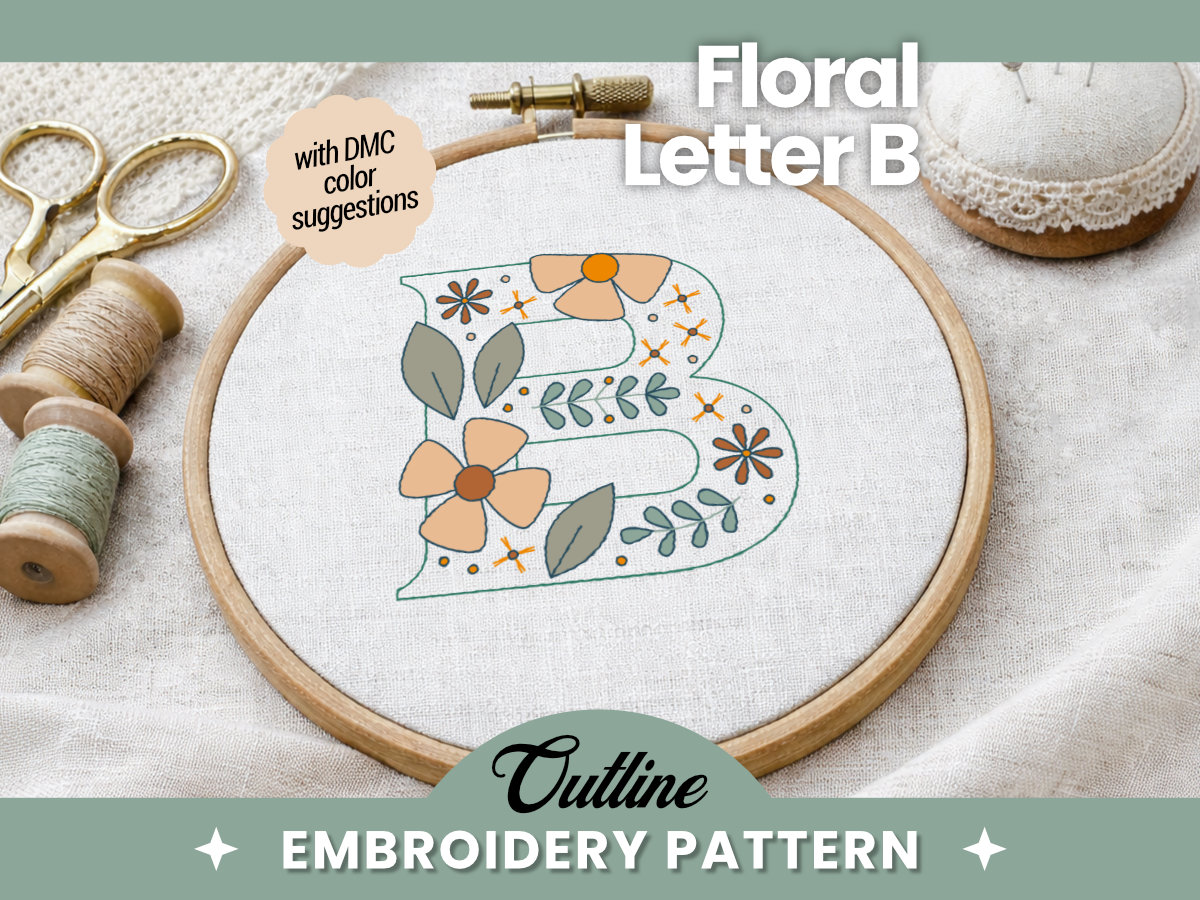
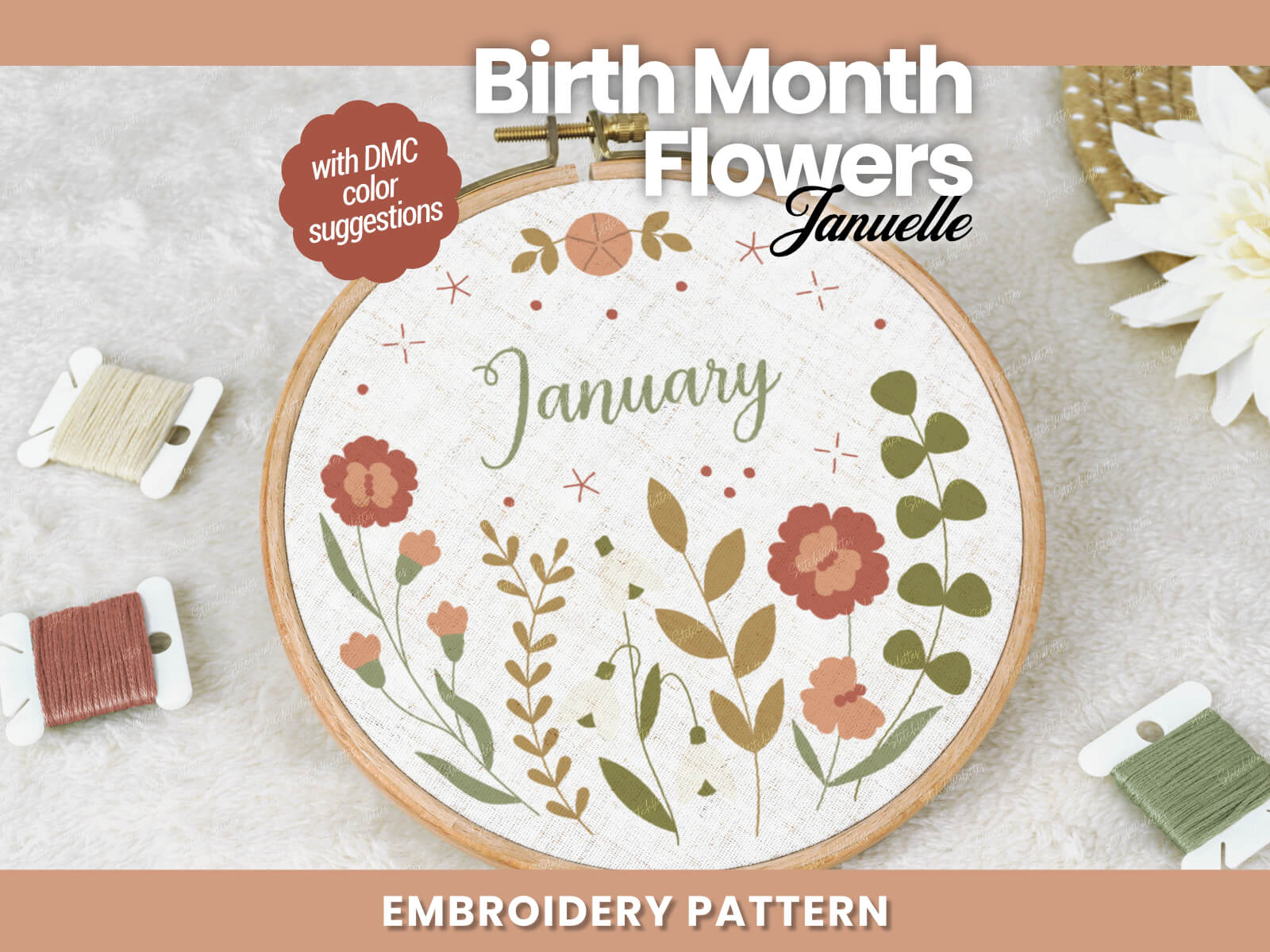
Click the “Change Pattern” button to select a new pattern from our library
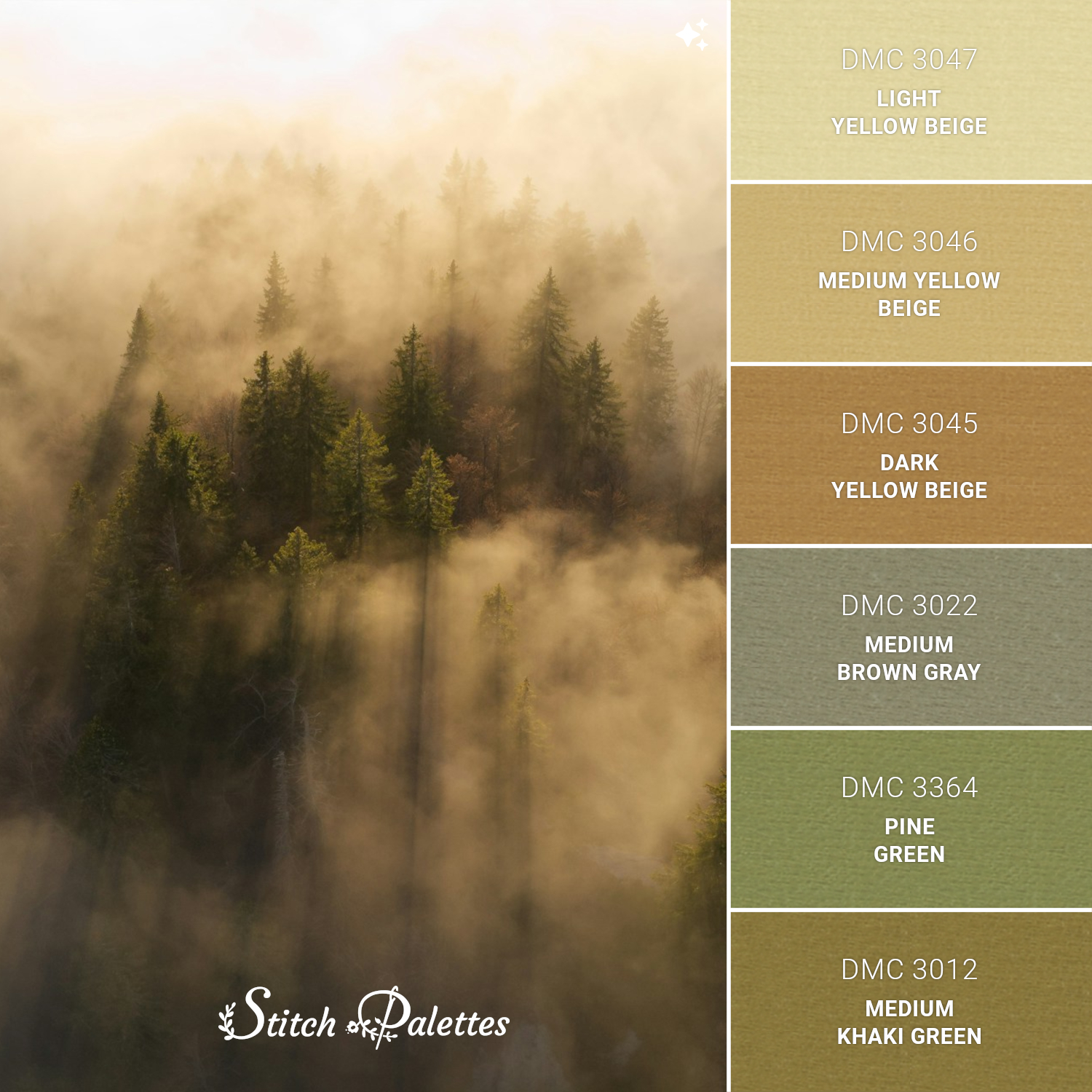
Active Palette: Misty Forest Trees
Create your own design
Click any palette from the list below to apply it to your selected pattern
Use the filters below to find your perfect match Click 'Load More' to see the full list.


Active Palette: Misty Forest Trees
In this section, you can adjust how your colors appear in the pattern. Use the arrow icon next to any color in the list below, then drag it up or down to change its position. As you move colors, the pattern will update instantly, showing changes in real time. Click Shuffle Colors to mix up your colors into a new random order.
Pattern Preview
In this section, you can set the color of the fabric you plan to use. Use the color picker to choose a shade similar to your fabric - this helps you better visualize how your finished embroidery will look.
To get started more easily, you can select one of the pre-defined pastel colors shown as small squares below the color picker. Click a color you like, then fine-tune it using the picker if needed. To return to a neutral background, simply click the first square.
When you’re happy with your selection, click Save to instantly update the pattern background.
Seeing your design on a realistic fabric color makes it easier to judge contrast, adjust thread choices, and avoid surprises once you start stitching. It’s a simple way to feel more confident about your color decisions before you commit.
In this section, you can personalize your pattern by adjusting the text, font style, and size.
Start by entering a name, a word or just a simple letter, then choose a font that matches the look you’re going for. Finally, adjust the size so the text fits naturally within your design.
When you’re happy with your selection, click Change to instantly update the pattern.
An ever-growing collection
Your creativity doesn't have to stop at a few designs.
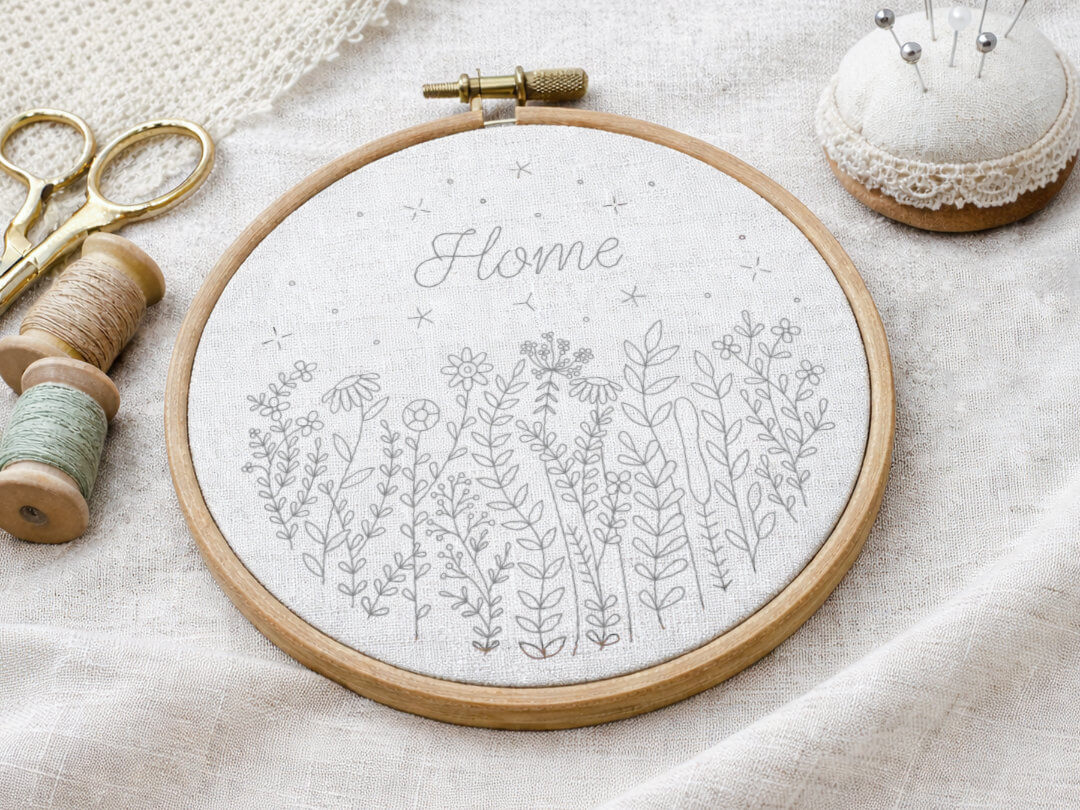
Each pattern in the shop is created to work seamlessly with the Customizer, so you can test different palettes, rearrange colors, choose your fabric and see your ideas come together before you start stitching.
If you're ready to experiment, refine, and truly make each project your own, combining your Palette Picks & Perks membership with new compatible patterns opens up a whole new way to create.
I'd love to hear your thoughts! Use this form to share your ideas, feature requests, suggest a pattern or let me know if something isn't working as expected. Your feedback helps make this tool better for everyone.